
How to Set Up and Use SafePal Wallet?

 Prefer us on Google


SafePal has grown into a broader self-custody ecosystem with hardware wallets, a mobile app, and a browser extension, and its official materials say it now serves more than 6 million users worldwide. If you want to use SafePal safely, the most important part is not just installation. It is understanding how to create or import a wallet, how to back up your seed phrase correctly, and how to avoid phishing risks, especially after SafePal’s disclosed 2026 customer data incident that did not affect private keys or funds.
Quick Answer
- SafePal setup depends on whether you use the mobile app only or pair it with a hardware wallet such as the S1, S1 Pro, or X1.
- Your first key choice is whether to create a new wallet or import an existing one using a seed phrase or other supported recovery method.
- The seed phrase is the true backup of your crypto wallet, so it should be written down offline and never stored casually online.
- After setup, enable the wallet’s main security protections and stay alert for phishing, fake support messages, and fake firmware prompts.
Before You Begin
For maintenance and future updates, note the versions you are using before setup. Based on SafePal’s official upgrade page, the S1 firmware listed in August 2026 was V1.0.81. SafePal updates its hardware and software over time, so the app screens and wording may differ slightly from what you see later. A good habit is to record your app version from the settings page and your device firmware version from the device information screen before following any guide.
It also helps to understand what SafePal is. The platform is no longer just a single hardware wallet. SafePal’s official updates in 2026 show continued integration across multiple chains and on-chain services, including support for networks such as Lemon Chain, World Chain, and Hedera, plus features tied to DeFi and staking access. That matters because setup is not only about storage. It is also about how you want to manage assets, swaps, and on-chain activity.
How to Set Up the SafePal App
If you are starting with the SafePal App only, the process is straightforward. First, download the official app from the legitimate app store for your device. Do not install APK files or follow links from messages, ads, or unofficial support accounts. After opening the app, choose whether you want to create a new wallet or import one you already use elsewhere.
[Screenshot Placeholder: SafePal App welcome screen]
If you create a new wallet, the app will generate a new seed phrase for you. You will be asked to write it down and confirm it. If you import an existing wallet, the app will ask for the recovery phrase in the exact order provided by your original wallet. After that, set a strong app password or passcode and review any prompts for biometric login if your device supports it.
[Screenshot Placeholder: Create wallet vs import wallet screen]
Once inside the app, you can add supported blockchains and tokens to your dashboard. SafePal is built for multi-chain use, so many users customize the home screen based on whether they mainly hold Bitcoin, Ethereum, BNB Chain assets, stablecoins, or other tokens. If you plan to interact with DeFi, staking, or swaps, double-check that you are on the intended network before sending funds. Network mistakes are a common beginner error.
-- Price
How to Set Up a SafePal Hardware Wallet
SafePal’s hardware line includes models such as the S1, S1 Pro, and X1. Official product materials describe the X1 as an open-source Bluetooth hardware wallet, while the S1 series continues with firmware-based improvements. The core idea is the same across hardware wallets: the private keys stay on the device, while the app works as the interface for viewing balances and preparing transactions.
Start by unboxing the device and checking that it appears untampered with. Charge it if needed, then power it on and follow the on-screen setup. The device will usually ask you to create a new wallet or recover an existing one. If you are new to crypto storage, creating a new wallet on the hardware device is generally the cleanest route.
[Screenshot Placeholder: Hardware wallet initial setup screen]
Next, pair the hardware wallet with the SafePal App using the method supported by your model. During pairing, confirm every step on both the device and the app. When the hardware wallet displays the seed phrase for a newly created wallet, write it down offline immediately. Never take a screenshot, never send it to yourself, and never enter it into a website.
[Screenshot Placeholder: Pairing hardware wallet with SafePal App]
After pairing, test the setup with a small transaction before moving larger amounts. That lets you confirm that receiving addresses, signing flow, and network selection all work as expected. This is a practical step, especially for beginners who are using self-custody for the first time.
Create a New Wallet vs. Import an Existing Wallet
This is the most important decision during setup. Creating a new wallet means SafePal generates a brand-new set of private keys and a new seed phrase. This option is best if you want a fresh start, better compartmentalization, or a dedicated wallet for long-term storage.
Importing an existing wallet means you are restoring access to keys that were originally created elsewhere. You might do this if you already use another wallet and want to manage the same addresses through SafePal. The benefit is continuity. The trade-off is that SafePal did not create that original recovery phrase, so your security depends on how safely that phrase was handled before import.
If a seed phrase has ever been exposed to cloud storage, screenshots, chat apps, or suspicious websites, importing it into a new wallet app or hardware wallet does not erase that risk. In that case, a safer approach is often to create a new wallet and transfer funds to the fresh addresses after verifying everything carefully.
| Option | Best For | Main Risk |
|---|---|---|
| Create a New Wallet | New users, clean setup, long-term storage | Losing the newly generated seed phrase |
| Import an Existing Wallet | Users restoring an old wallet or consolidating access | Old seed phrase may already be exposed |
How to Properly Back Up Your Seed Phrase
Your seed phrase is the real key to your wallet. The app, phone, or hardware device can be replaced. The seed phrase cannot. If someone gets it, they can usually control the wallet. If you lose it and your device fails, you may lose access permanently.
The safest basic method is simple: write the phrase down by hand, in the correct order, on durable offline material, and store it in a private location that only you or trusted contingency planning can access. Some users make more than one written backup and store them separately to reduce single-point failure risk such as fire or water damage.
[Screenshot Placeholder: Seed phrase confirmation screen]
Do not store your seed phrase in photo galleries, notes apps, email drafts, cloud drives, or messaging apps. Also ignore anyone claiming to be support who asks for the phrase. That includes requests framed as account verification, refund processing, firmware recovery, or wallet synchronization. This matters even more after SafePal’s August 2026 disclosure that customer order information for 39,798 people was exposed through an order-tracking flaw. According to CoinDesk and Help Net Security, the incident did not expose private keys, passwords, or funds, but it increased phishing and impersonation risk.
3 Security Settings to Configure After Setup
First, set a strong device password or PIN. Whether you use the app, a hardware wallet, or both, this is your first barrier against casual physical access. Avoid short or guessable codes.
Second, enable biometric lock on the app if your phone supports it, but treat it as convenience, not a replacement for proper backup discipline. Biometrics can help reduce day-to-day access risk, yet your seed phrase remains the final recovery method.
Third, turn on every available anti-phishing habit around updates and support. Only use the official app, verify firmware carefully, and confirm transaction details on the hardware device itself before signing. SafePal’s own post-incident response included patching the flaw, notifying affected users, bringing in an outside security firm, and taking down more than 30 phishing sites, but user caution still matters because scammers often exploit leaked order details to sound convincing.
How to Use SafePal After Setup
Once your wallet is ready, daily use is fairly simple. To receive crypto, copy the correct address for the right blockchain network and test with a small amount first. To send crypto, paste the destination carefully, confirm the network, review gas fees, and if you use a hardware wallet, verify the address and amount on the device screen before signing.
SafePal also connects users to broader Web3 functions such as swaps, staking-related features, and DeFi access. That convenience is useful, but every extra on-chain action adds smart contract and phishing risk. Beginners should start small, read transaction prompts carefully, and keep long-term holdings separated from more active wallets where possible.
Conclusion
Setting up SafePal correctly is less about speed and more about good security habits: choose the right wallet type, understand whether you are creating or importing keys, back up the seed phrase offline, and verify every update, transaction, and support message with care.
FAQ
1. Is SafePal a software wallet or a hardware wallet?
It is both. SafePal offers a mobile app, a browser extension, and hardware wallets such as the S1, S1 Pro, and X1.
2. Should I create a new wallet or import an existing one?
Create a new wallet if you want a fresh set of private keys. Import an existing wallet only if you need to restore or manage a wallet whose recovery phrase you already control safely.
3. What is the most important thing to protect in SafePal?
The seed phrase is the most important item. It is the recovery key to the wallet and should be written down offline and kept private.
4. Did the 2026 SafePal incident expose wallet funds or private keys?
No. Based on the disclosed reports, the incident involved customer order information and did not compromise private keys, seed phrases, passwords, or wallet funds.
5. Can I use SafePal for DeFi and multi-chain assets?
Yes. SafePal’s official updates show ongoing multi-chain expansion and access to on-chain functions, but users should verify networks and understand the risks before interacting with DeFi.
This content is provided for general informational purposes only and doesn't constitute financial, investment, legal, or tax advice. Any events, rewards, online promotions, or related information mentioned herein should not be considered a recommendation, solicitation, or invitation to purchase, sell, trade, or otherwise deal in any crypto assets. Crypto assets are highly volatile and may result in loss. The availability of WEEX services, products, and related events may vary by region. You are responsible for ensuring that your participation is in accordance with applicable local laws and regulations.
You may also like
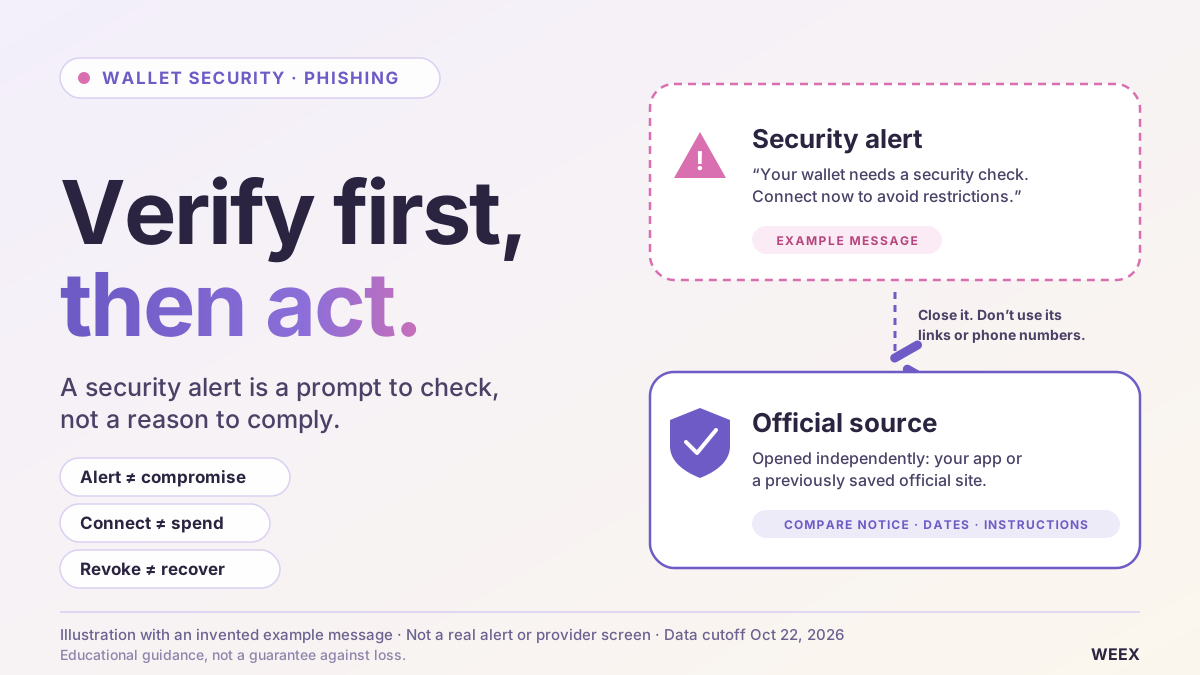
Is Your Crypto Wallet Safe? How to Verify Security Alerts and Spot Phishing

Best Crypto Wallet 2026: Top Picks for Every Type of User

Is SafePal Safe? A Look at Its Security Features
What Is SafePal Wallet? A Complete Beginner's Guide
Binance Hack Explained: What Is Confirmed, What Is Disputed and What Users Should Do Now
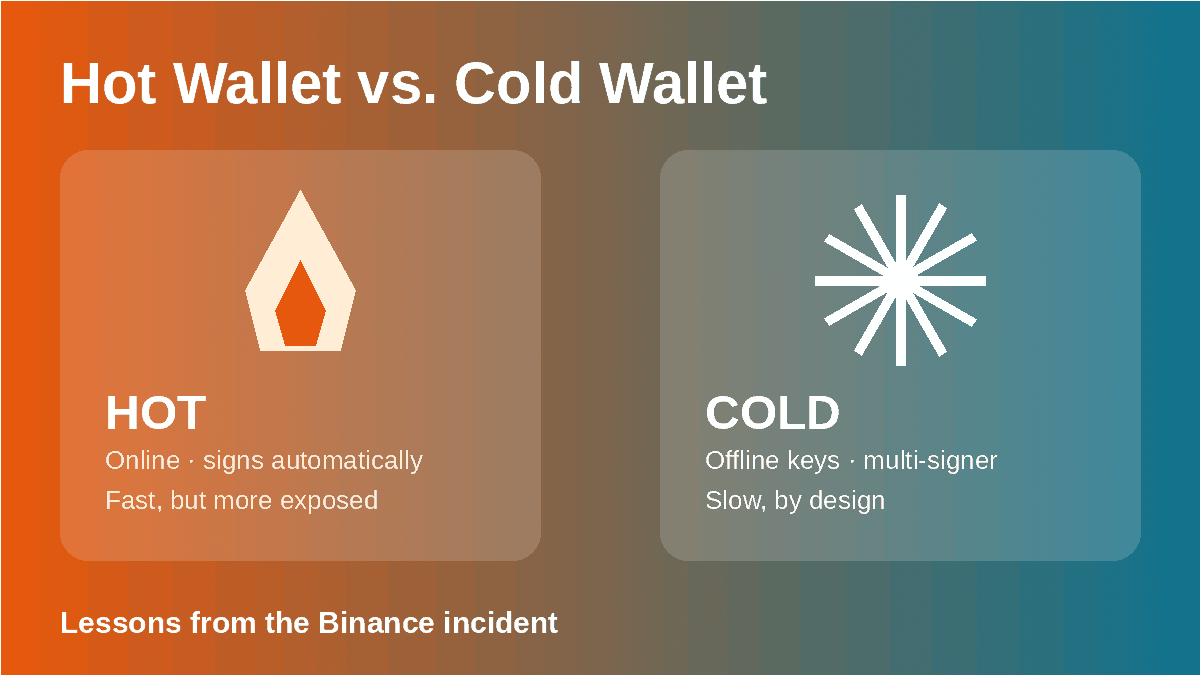
Hot Wallet Security Explained: Lessons From the Binance Incident
Binance Hack Scams: How to Spot Fake Refund and Recovery Offers
Binance Withdrawals Paused: What Users Should Check Right Now
![HYPE Price Jumps After ICE Backs trade[XYZ] on Hyperliquid: What Is Confirmed and What Is Not](/public-static/HYPE_Price_Jumps_After_ICE_Backs_trade_XYZ_on_Hyperliquid_e2749bfc31.webp?format=avif)
HYPE Price Jumps After ICE Backs trade[XYZ] on Hyperliquid: What Is Confirmed and What Is Not
GOOGL Q3 Earnings: Why Alphabet Fell Despite 103% Cloud Growth
Is XTruth Oil (XTO) Legit? Contract Checks, Payout Gaps and Liquidity Risks
United States Dividend Fund (USDF) October 30 Announcement and October 31 Date: What to Verify Before Believing Either Claim
United States Dividend Fund (USDF): Is There a Connection to Trump’s Dividend Plan?
Ripple National Trust Bank: Who Really Gains From OCC Approval
Hyperliquid US Entry: What Kraken's Payward Plan Actually Builds
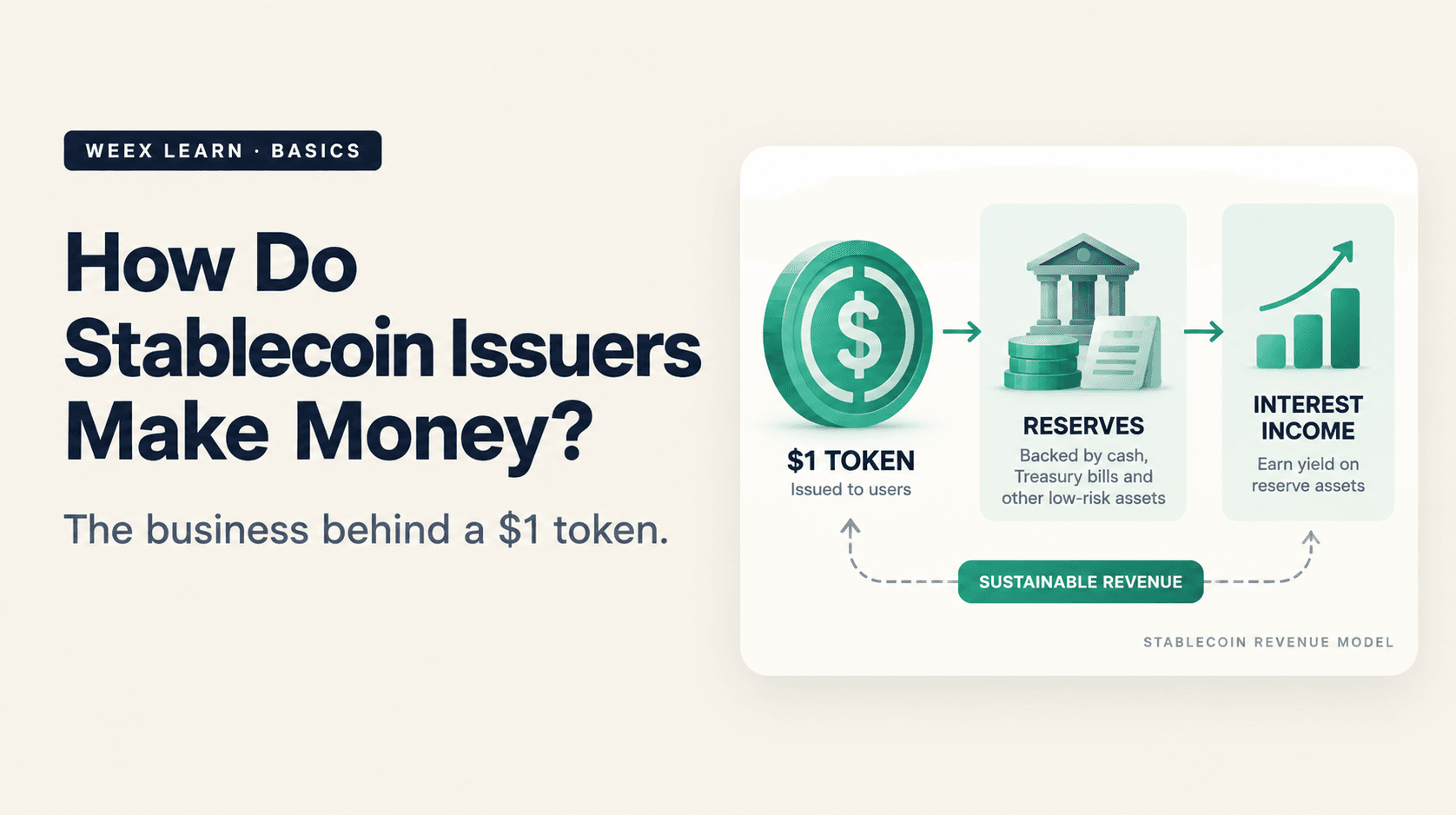
How Do Stablecoin Issuers Make Money? The Business Behind a $1 Token

Robinhood RLUSD: What Ripple’s Partnership Means for XRP and the XRP Ledger

Why Unitree Stock Jumped: JPMorgan Upgrade, Physical AI Timelines and What Investors Should Check

SKHY Q3 Earnings: SK Hynix's 632% Profit Jump Is a Price Story
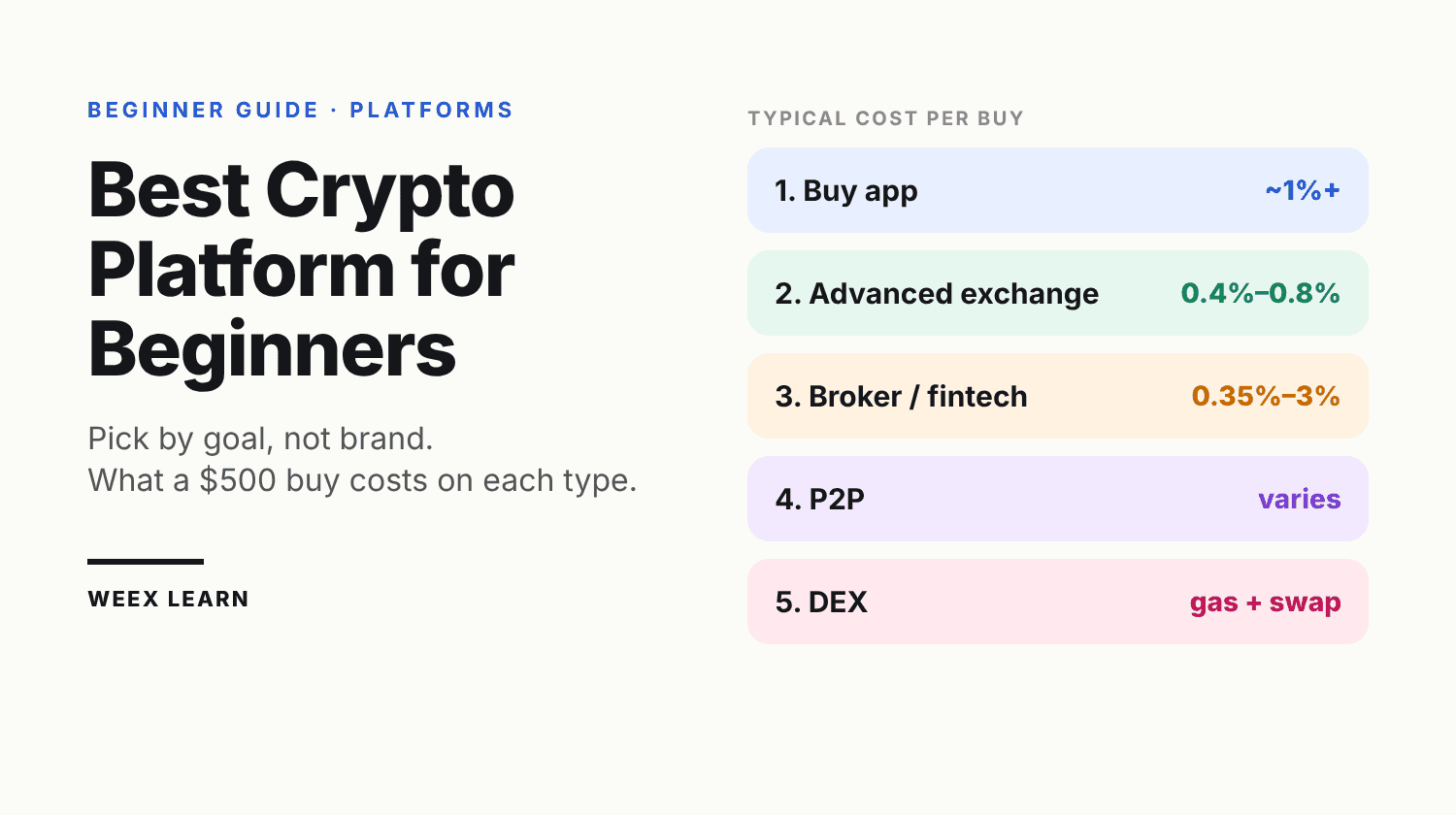
TSLA Barclays Upgrade: What the $450 Price Target Assumes
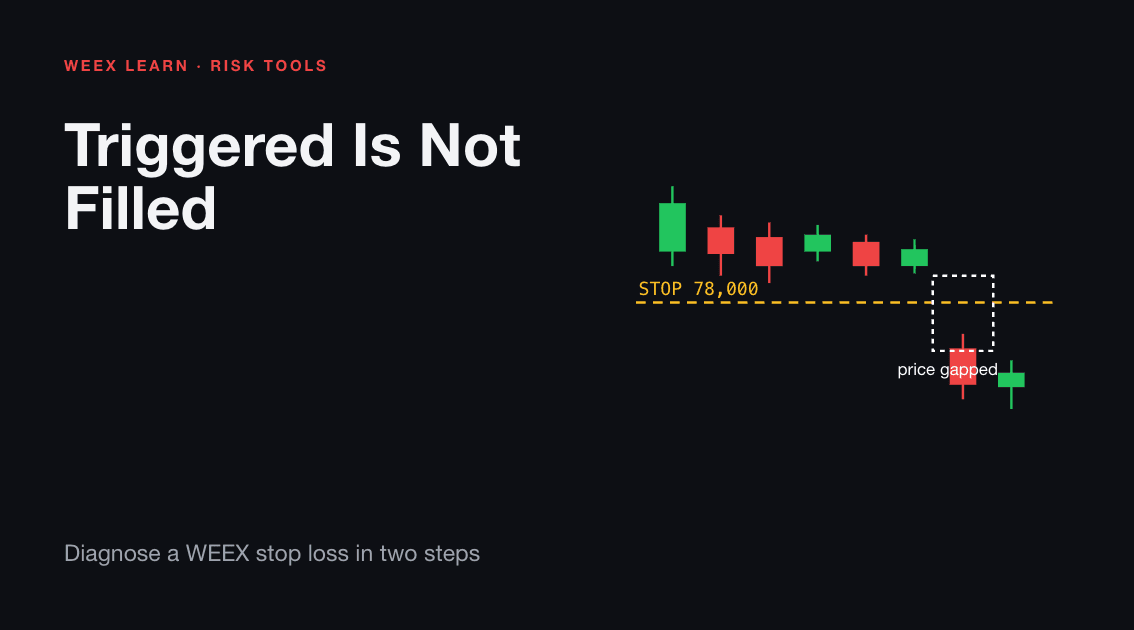
XRP After Ripple's OCC Charter: What the Bank Approval Changes
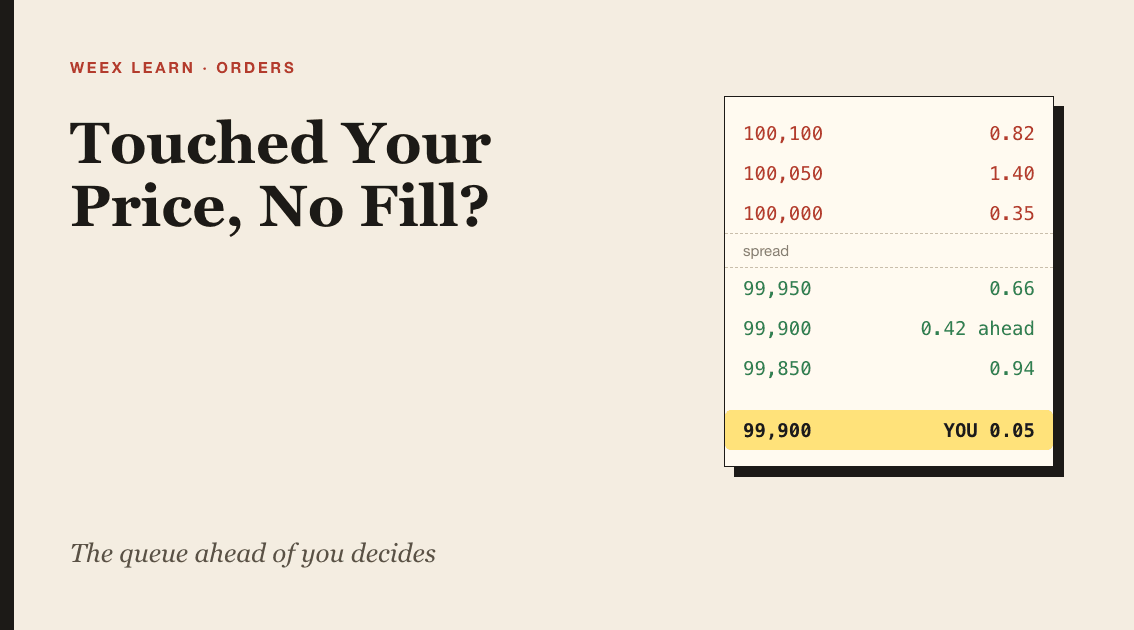
BTC Fights for $80K Before the Fed: Why Leverage Hasn't Flushed

AVGO and META Stock: What an $88B AI Financing Week Signals
Gold Price Back Above $4,000: Fed, Iran Risk and the Next Test
USDT Interest Rate 2026: Current APR and Earnings Calculator
Taiwan Crypto Regulations 2027: What Investors Need to Know

What Does the Kalshi–S&P Dow Jones Deal Mean? Event Contracts vs. Index Investing
Tokenized Stocks Explained: What to Check Before You Trade
CLS Stock After Q3 Earnings: Revenue Up 83%, 2027 Outlook and What Investors Should Check
Which WEEX Moves Cost You Auto Earn Interest? 9 Actions Checked
Is Your Crypto Wallet Safe? How to Verify Security Alerts and Spot Phishing
Best Crypto Wallet 2026: Top Picks for Every Type of User
Is SafePal Safe? A Look at Its Security Features
What Is SafePal Wallet? A Complete Beginner's Guide
Binance Hack Explained: What Is Confirmed, What Is Disputed and What Users Should Do Now
Hot Wallet Security Explained: Lessons From the Binance Incident
Contents
Popular coins
Latest articles


